Managing passwords
You will be prompted to change your password every four months.
-
Select the My Account
 button within the Provider Portal header to display the My Account panel.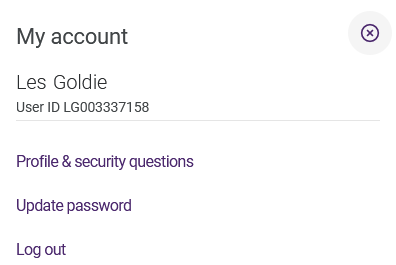
-
Select Update password.
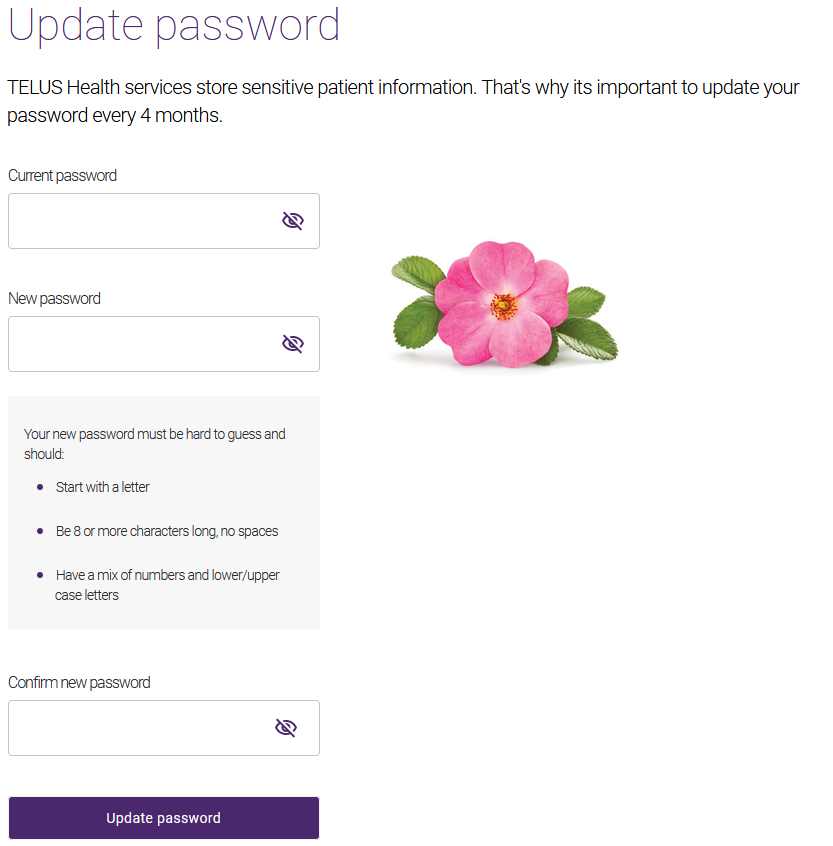
The Update password page is displayed.
-
Enter your Current password.
-
In the New password and Confirm new password fields, enter a password. Your password must be hard to guess and should:
-
Be 8 or more characters long, no spaces
-
Have a mix of numbers and lower/upper case letters
-
Include at least 1 special character (e.g. $, #, @, !, %, ^, &, *, (, ), _)
-
Not contain first/last name or username
-
Not contain repetitive characters (e.g. aaa)
To show a password, select the Password hidden
 button. To hide a password, select the Password shown
  button.
 -
-
Select Update password.
The following message is displayed.

